Like a lot of other developers working with WordPress, I like to build locally when creating new plugins, themes, or anything else for clients and side projects.
I also am a fan UI management tools that help manage my workflows like SourceTree which It helps me manage my git repos:
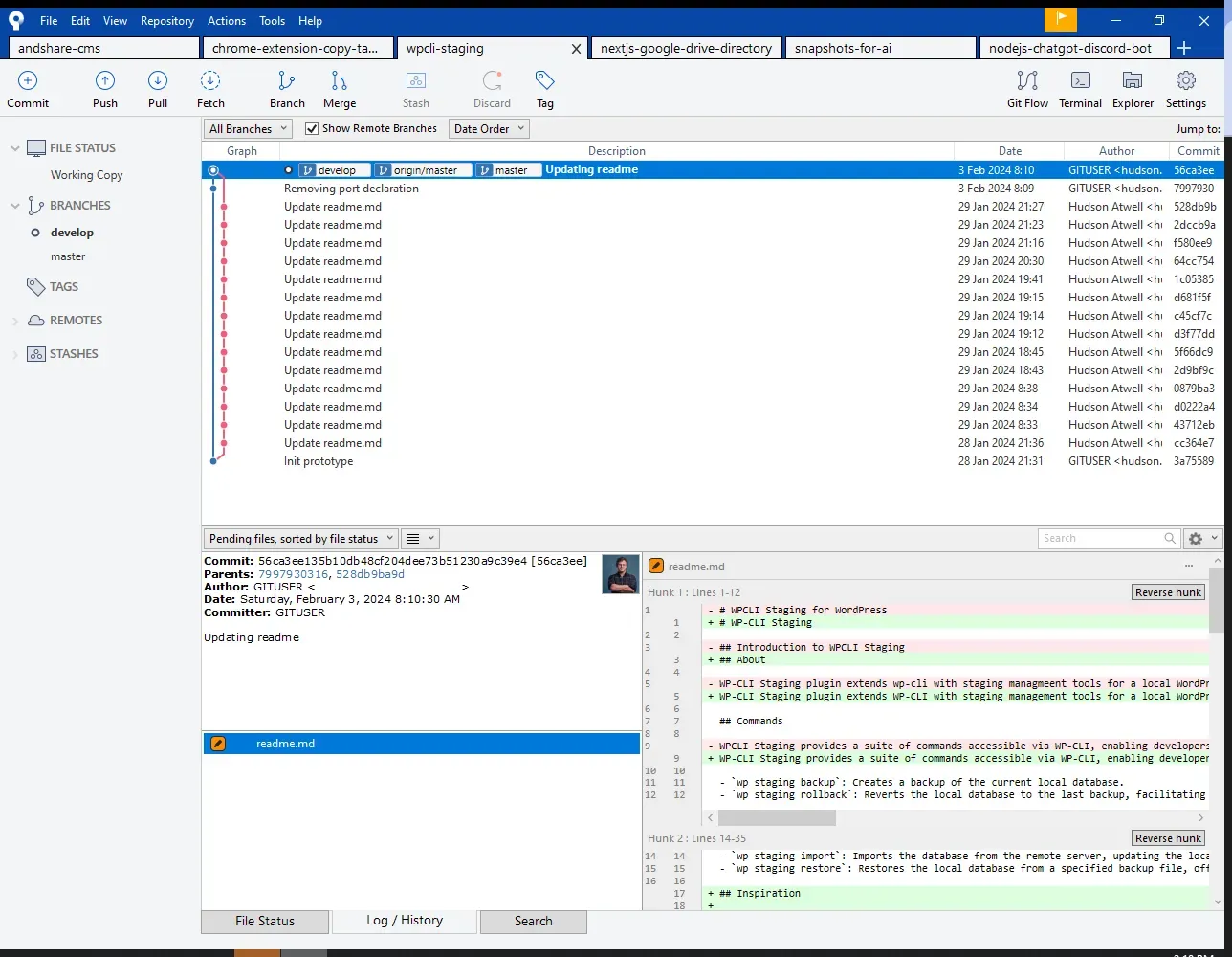
SourceTree App – A Git Repository Management Tool
And Local WP, for quickly spinning and managing up docker containers for WordPress sites:
LocalWP is an application for managing local WordPress instances
Because I enjoy working locally, I’ve always wanted a way to treat my local wp instance as my staging environment. Even though I was a Local WP user, I was not a Flywheel or WPEngine customer so I could not use their native “Connect” feature that would automatically allow me to pull production down locally and push staging back.
I was already using PHP Storm to manage the downloads/uploads to the production site via SFTP connections (GBTI is currently being hosted on CloudWays) but I did not have a way to quickly clone the database. The overhead expense of exporting and importing via plugin was going to be too great to be considered efficient. I would rather push my code directly to production than make manual exports and manual imports; but that’s not right either. So I needed another way.
I was considering writing a python script, but I had heard through conversations with senior developers at Codeable that they were successful at managing large migrations at the command line through a utility called WP-CLI, developed by Alain Schlesser.
I knew that Local WP and CloudWays both provide WP-CLI support, too so I took a shot at developing WP-CLI Staging as a WordPress plugin that would extends WP-CLI with a staging command and in addition several sub-commands that could be run inside the terminal.
In this video the `wp staging import` command is executed, pulling the production db down from the CloudWays server and setting it up locally.
Let’s take a look at the progress I was able to make:
wp staging backup: Creates a backup of the current local database.wp staging rollback: Reverts the local database to the last backup, facilitating easy undo of recent changes.wp staging rollforward: Advances the local database to a more recent backup if available, useful after performing a rollback.wp staging import: Imports the database from the remote server, updating the local environment with production data.wp staging restore: Restores the local database from a specified backup file, offering flexibility in managing local data states.
In this screenshot the settings area of the wp-cli staging plugin is being displayed.
At the moment, I’ve only coded in subcommand for pulling staging db from production to local. I have not created sub-commands that push staging to production. I think that is the next step for the asset. But to be very honest, it is not a rush on this end. I am very happy to have the pull capabilities.
What do you think? Maybe you could help? 😎
WP-CLI staging is open source and available for pull requests and merge requests on github. If you help out, I would love to add your name to the contributors list.
Also, If the repo gets over 25 stars I will list it on the WordPress Plugins Directory.
To close out this article, I wanted to throw an honorable mention to fellow WordPress colleague J Michael Ward and his article that shows a different but also effective route at doing this same thing using wp-cli native commands, no plugins needed.







0 Comments
No comments yet. Be the first. Members comment from the GBTI local client, where comments are submitted as pull requests and auto-published for paid members.
Become a memberComments are for members. Become a member to join the conversation, or if you already are.
You are signed in as a member. .